
A skill consists of the instructions your AI assistant uses to carry out a task the same way every time and to a high standard. If you’d like to know more, you can refer to the detailed explanation of what a skill is. Here is a quick guide to create one on your own.
Take GL to Report as a concrete example. This skill accepts a raw general ledger export, generates your flash report, and prepares variance commentary by comparing the results with prior periods and the budget. You can verify each of the points below by referring to this skill to see how it works in practice.
1. Make a plan before you begin to write
Begin by picking a small task you perform frequently and writing down the steps. This is your plan, and it should be drawn up before you start writing the instructions.
Select a task that you do regularly and would like to hand to someone else. Make it as simple as possible and avoid trying to cover an entire range of activities. For instance, the close-and-reporting process behind GL to Report is a good fit: it happens monthly, follows the same steps, and is something people are willing to hand over.
Next, write down these four things in simple terms:
- The input you start with. For GL to Report, that is a raw GL export from Sage Intacct, QuickBooks, or whatever system you run.
- The output you want. Here it is your flash report template, filled in, plus first-pass commentary on what moved and why.
- The rules that always apply. GL to Report needs a mapping from GL lines to report lines, a materiality threshold, and the report layout. If any are missing, the skill halts and requests the information instead of guessing.
- The lines you want the skill to flag for your review. If a GL line is not mapped, or there is a sign difference between the export and the template, the skill should highlight it so you can check it.
When you have noted those four points, you understand the task well enough to hand it over. That is the primary aim of planning. Afterward, writing the instructions is much easier.
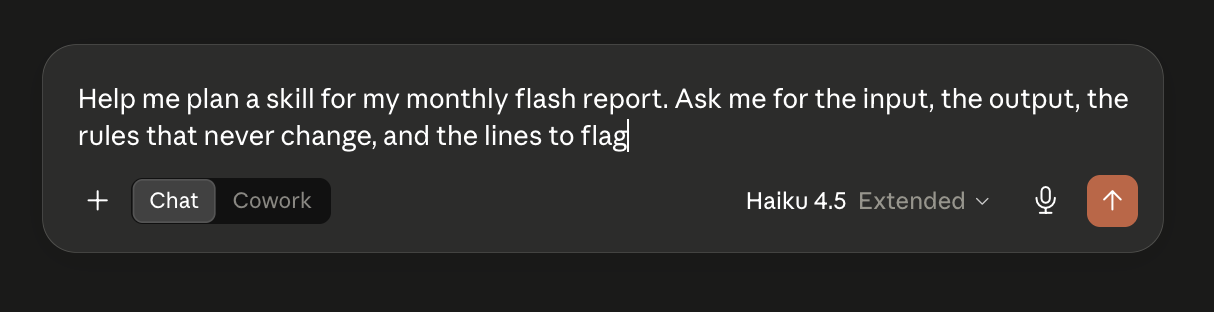
Do this in Claude Chat: open a new chat and type, “Help me plan a skill for my monthly flash report. Ask me for the input, the output, the rules that never change, and the lines to flag.” Answer Claude’s questions in plain words. When finished, ask for a summary of the plan as a short list. That list is your plan.
2. What a good skill looks like
A skill is the set of instructions your assistant follows when a task arises. Good skills share a few traits you can copy.
Each skill should focus on one job only. GL to Report reformats the ledger and writes commentary, while pulling the GL data is a separate skill. Because each skill stays focused, it does its job well.
It states its rules up front and asks for anything missing. When you give GL to Report a plan with no mappings, threshold, or layout, it pauses and asks for the details instead of guessing. That pause lets you trust the report it produces.
It shows its work. Every commentary line in GL to Report carries two things: the variance math and the reason for the change. You can see the figure and the explanation side by side and check both.
It flags and hands back. Unmapped lines get flagged. Sign mismatches get flagged. The skill hands the judgment calls back to you, so you stay in control of the ones that matter. For inputs stranger than those two, give the skill one standing rule: when something is unexpected or could be read two ways, stop and ask rather than choose. Have it name what it saw, offer its best guess, and wait for you. A skill that asks a sharp question beats one that guesses wrong with confidence.
Write your skill to have those same traits: one job, stated rules, cited work, and flags over force.
Once you have those written down, the skill itself is a plain text file. You put your instructions into a SKILL.md, along with a short description of when to use it. The description is what tells your assistant when to load the skill, so write it the way people actually ask for the task, not the way you would name it internally.
Do this in Claude Chat: in the same chat, type, “Turn that plan into a SKILL.md. Give it a name, a one-line description of when to use it, and numbered steps.” Review the draft and fix anything that is off. Then upload it to Claude:
- Open Settings, then Capabilities, and find Skills.
- Choose Create skill or Upload, and add your
SKILL.md. If your skill is more than one file, upload the folder as a zip. - Name it if asked, save, and switch it on.
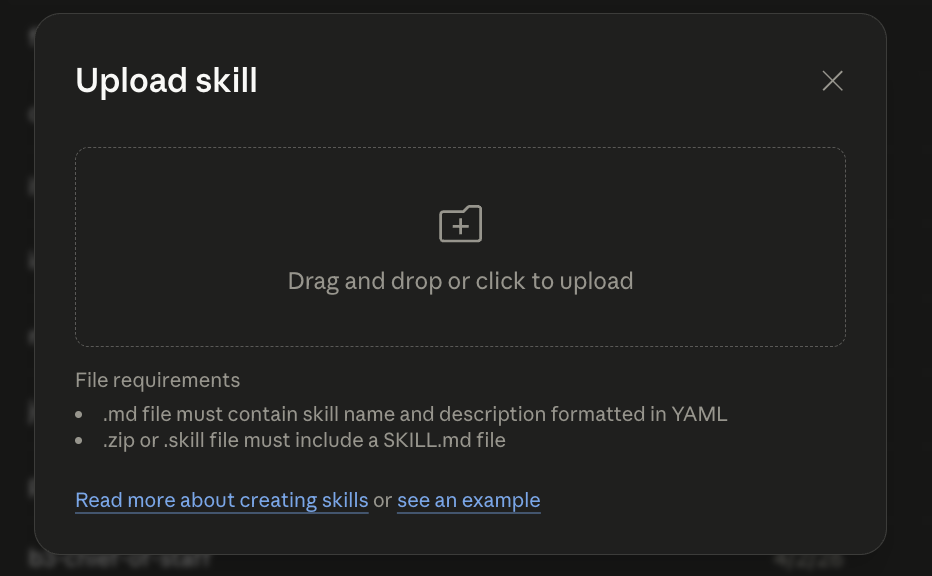
To run it, start a new chat. You can describe the task, and Claude loads the skill when your request matches its description. To call it directly, type / in the message box, pick your skill from the list, and add your inputs.
Test it before you trust it. Run it once on a real case where you already know the answer, and check the output line by line against what you would have done by hand. Then feed it a broken input on purpose, a missing mapping or a number with no source, and confirm it stops or flags instead of guessing. When it clears both a good case and a bad one, it is ready for daily use. GL to Report ships these as self-tests you can rerun after every edit.
3. How to prompt it
Once the skill is installed, you no longer need a perfect prompt, since the skill already carries the steps. All you need to do is state the task and provide the inputs.
Describe the work the way you would to a new analyst. For GL to Report, that is something like: here is the June GL export; here is the flash report template; use the standard mappings; draft the variance commentary against both the budget and the previous month.
If you are not sure it will trigger, use the trigger phrases. GL to Report responds to phrases such as “turn this GL into a flash report” and “draft variance commentary.” They exist so you do not have to guess the magic words.
Provide the actual files. The skill works on the real export and the real template, so real inputs give you a real result.
Do this in Claude Chat: begin a new chat with the skill enabled. Type / to bring the skill up, or describe the task. Click the attach button and upload your real GL export and your flash report template. Enter the task as you would instruct an analyst, then send. Watch it apply the skill and compare the first output against the source files.
4. What goes wrong at run time
This is the part most guides skip, and it is the one that matters. Skills fail in a few predictable ways. Here are three real ones and how to fix each.
The skill never triggers. You ask for help, and nothing happens, because the way you asked does not match the skill’s description. You asked to “clean up the month-end numbers,” but the skill was listening for “flash report.” Fix: widen the trigger phrases and the description to match how people actually ask, in their own words. If three people describe the task three ways, all three belong in the skill.
The skill fabricates a number. You ask for variance commentary, and it confidently reports a figure that is not in the data. This is the dangerous one, because the output looks right. Fix: make the skill cite its source for every number and refuse to make a claim when the source is missing. GL to Report ties each commentary line to the variance math. If it cannot show the math, it does not make the claim. Build that refusal into your skill from the start.
The skill assumes a file shape you do not have. It expects your GL export to have a column your system does not produce, or your template to be laid out a certain way, and it either errors or quietly maps to the wrong place. Fix: make the skill inspect the input and flag what is missing rather than assume. GL to Report flags unmapped lines and sign mismatches instead of forcing them into place. Your skill should check the shape of what it got before it acts on it.
Notice the pattern in all three fixes. You are not making the skill smarter. You are getting it to admit what it does not know.
Do this in Claude Chat: when something looks wrong, say so in the same chat. Tell Claude exactly what it missed, for example, “line 4 has no cited math; update the skill so every number shows its source.” Ask for the corrected SKILL.md, save the new version, and re-upload it in your skills settings, replacing the old one. Then run the task again in a fresh chat to confirm the fix held.
5. Start small, then grow
Build the one piece that hurts most and ship it. One skill does not need to run the whole month-end close.
GL to Report is one piece. It does not run the close. It takes one hard step, the reformat-and-narrate, and does it well. That is the right size for a first skill, small enough to get right and useful enough to keep using.
Once it survives a few real runs, grow it in two directions. Broaden coverage by adding the GL systems and template shapes your team actually uses. And chain it, building the upstream skill that pulls the GL and the downstream skill that packages the report, so the pieces hand off to each other.
The compounding comes from the chain, not from any one giant skill. Each small skill you trust becomes a link. Build the first link well, prove it on real work, then add the next.
Processes drift. Mappings change, a new entity shows up, the template grows a line. Plan to revisit the skill every few months, or the first time its output surprises you, and update the instructions to match. This is the easy part to let slide, so if you would rather not track it by hand, sign up for the app platform: we watch how your process changes and help keep the skill current as it drifts.
Do this in Claude Chat: when a new GL system or template shows up, open a chat with the skill on, paste the new example, and type, “Add this case to the skill.” Save the updated SKILL.md and re-upload it. To chain, build the second skill the same way, switch both on, and hand the output of one into the next.
When you are ready to see finished examples, browse the skills catalog and start with GL to Report.
Decided you would rather not build this yourself? Start onboarding in the app and we will set it up with you.